Clone View Configurator
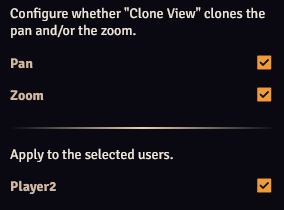
The Clone View Configurator configures what happens when the view is cloned (when your view is applied to users) when the Clone View control button or the Clone View hotkey is pressed.
It is accessible from the module settings or by right-clicking the Clone View control button.
Setting the Clone View Hotkey
The Clone View hotkey is set to Alt + C by default, but this can be configured in the Controls Configuration.
Pan
If enabled, will pan the selected users to the current view.
Zoom
If enabled, will zoom the selected users to the current zoom. Due to differing display aspect resolutions and/or aspect ratios the zoom level a user might experience might be different from yours.
Zoom has the following options:
- Disabled: Do not zoom.
- Zoom: Use the current zoom/scale level, the amount it zooms is dependent of a user's display resolution (for 2 users with different resolutions it will zoom differently).
- Horizontal View: Clone the view so your current view will be cloned such that your horizontal view will be identical to the user's horizontal view.
- Vertical View: Clone the view so your current view will be cloned such that your vertical view will be identical to the user's vertical view.
- Automatic (Inner): Similar to "Horizontal View" or "Vertical View", but Lock View will select between them so that the user's view fits inside your view.
- Automatic (Outer): Similar to "Automatic (Inner)", but the opposite situation.
Users
By default, the cloning will be applied to all users with Enable enabled.
You can choose to apply it to a selection of users.