Stream Deck App
The official Stream Deck application is the default communication method for Material Deck.
It only works on Windows and MacOS, and only with supported Elgato devices. Linux users, or users of non-Elgato compatible devices will need to use OpenDeck or WebHID.
Follow the following steps to install and configure the Stream Deck application:
- Download and install the Stream Deck application
- Install the Material Deck plugin
- Make sure the browser is allowed to access the plugin
- Test if everything works
Chrome, Brave, Adblockers and Script Blockers
Chrome, Brave and other browsers have settings that may prevent a communication between Foundry and the Stream Deck application.
Similarly, browser plugins/extensions can block the connection.
See here for more info.
Material Deck Plugin
The Material Deck plugin is what allows the Stream Deck to communicate with Foundry.
- Download the latest plugin file (com.cdeenen.materialdeck.streamDeckPlugin) from here or get it from the Download Utility
- Double-click the file, this should open the Stream Deck software if it's not open yet
- Press 'Install' in the pop-up
If that doesn't work, you can try the following:
- Download the source code from here
- Extract the file (using, for example, WinRAR)
- Copy the
com.cdeenen.materialdeck.sdPluginfolder (in the 'Plugin' folder) to:- Windows:
%appdata%\Elgato\StreamDeck\Plugins\ - MacOS:
~/Library/Application Support/com.elgato.StreamDeck/Plugins/
- Windows:
- Restart the Stream Deck application.
Allowing Browser Access to the Plugin
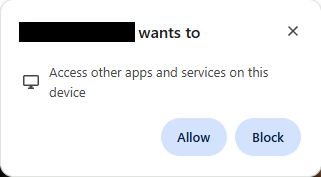
By default, some browsers may prevent connections between a secured website and local apps and services (which the Stream Deck plugin is).
You might see a pop-up appear when you first access your Foundry server, which asks you to allow this access. If you see this popup, select Allow.
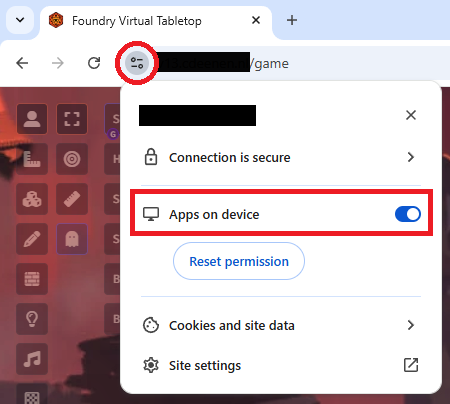
If you do not see that pop-up, click the icon to the left of the address bar and make sure Apps on device is enabled.
On older versions of Brave you have to disable the shields for your Foundry server: 1. Press the lion icon to the right of the address bar 2. Set shields to 'down'
Browser Plugins/Extensions
Some browser plugins/extensions such as ad-blockers and script blockers may prevent the connection between Foundry and the Stream Deck. If you run into connection issues, try disabling the extension or whitelist your Foundry server.
Testing If Everything Works
You can now test if a connection can be established between the Stream Deck and Foundry:
- Make sure the Stream Deck is connected to your computer and you are running the Stream Deck app
- Start a world in Foundry and access it (or refresh it)
- A notification should appear stating
Material Deck: Connected to Stream Deck, which means the connection is established - In the Stream Deck app, drag a 'Token' action to one of the buttons (see here if you don't know how to do that)
- Select a token in Foundry, its icon and name should appear on the Stream Deck